Populating Data
Altmetric collects attention data for outputs that have been mentioned online across a range of sources. As items in the Altmetric database are not organized by institution, we can integrate with third party systems or allow for a manual CSV upload in order to set up your institutional version of Explorer for Institutions, with outputs produced by your own authors and departments.
We will then populate Explorer for Institutions by linking your set of publications, authors and departments with the scholarly publications already tracked in the Altmetric database. This enables you to browse the altmetrics of your institutional outputs by your institutional authors and departments.
Choosing Your Data Source
Each Explorer for Institutions instance is populated from a single data source. The options below are alternatives rather than building blocks, so please pick the one that gives the most complete coverage of your publications:
- A Research Information Management System, such as Symplectic Elements, Pure or CRIStin
- Your institutional repository OAI-PMH feed, such as EPrints, DSpace, Haplo or Esploro
- A CSV/Excel spreadsheet that you send us and keep up to date
We cannot merge two live sources into one instance
Your publications and authors are imported from the one source you choose, so we are unable to combine, for example, a Symplectic Elements API connection with an OAI-PMH feed from your institutional repository. If your publications are spread across two systems, either choose the system with the fullest record, or export a combined set from both into a single CSV/Excel upload, bearing in mind that a spreadsheet is then kept up to date manually rather than syncing automatically.
Departmental structure is the one exception. Some integrations can take your department hierarchy, department renaming or paper re-mapping from a supplementary file that you host, alongside the main source. For OAI-PMH, see Hierarchy and the remote CSV/JSON department file instructions.
We can move an existing instance from one source to another later on. That is a switch rather than a merge: your instance is cleared and re-imported in full from the new source, so let your Engagement Manager or support@altmetric.com know before you change anything at your end.
Connecting to Your Research Information Management System
Implementation involves granting API access to Altmetric, so that Explorer for Institutions can be automatically populated with the relevant publication, author and departmental data.
Symplectic Elements
If your institution uses Symplectic Elements, Altmetric is able to easily provide a seamless link between Elements and Explorer for Institutions. Altmetric supports Symplectic Elements V6 and automatically detects your API schema version during the import process.
Instructions are detailed below on establishing the connection between Explorer for Institutions and your instance of Symplectic Elements.
Administrator instructions for Elements
Please follow the instructions below to set up your Elements API for Altmetric.
Allow Altmetric through the Elements server firewall
What you need to do depends on your situation: - If you are currently implementing Elements, let your Elements implementation manager know that you want to set up the Altmetric Explorer integration - If you are an existing client and your Elements instances are hosted by Symplectic, email [email protected] - If you are an existing client and you host your own Elements instances, follow the "Open a port" and "Assign an SSL certificate" sections below
Open a port
If your Elements instances are hosted by Symplectic, ignore this step.
You'll first need to open a port in your firewall to allow access to your Elements API, to do this you'll need to find an available port.
To see the ports currently in use run this from a command line:
Assign an SSL certificate
If your Elements instances are hosted by Symplectic, ignore this step.
Once you have opened a port, you will need to take the thumbprint and assign a valid SSL certificate to your chosen port. Replace the <port number> and <thumbprint> before running this from a command line:
netsh http add sslcert ipport=0.0.0.0:<port number> certhash=<thumbprint> appid={00112233-4455-6677-8899-AABBCCDDEEFF}
Run this to see if your port is now listed:
Important
SSL is a requirement for this implementation, as Elements no longer supports unsecured connections in production environments.
Add API endpoint
Please note that any new API endpoint must be provisioned and configured through the Elements infrastructure, and that endpoints not configured in this way will disrupt overall API functionality.
For Elements customers with Symplectic hosting, please raise a support ticket with the Elements Infrastructure team prior to adding a new endpoint for Altmetric, to avoid any service interruptions.
To add a new API endpoint, system administrators can configure the Elements API in the Manage API area under System Admin.
Add a new API endpoint on the API Endpoints page with the following details:
- Compatibility: Standard 6.13
- Scheme: HTTPS (Secure)
- Port: as set up above
- Path: for example:
elements-api-altmetric
This will create an endpoint with address like: https://<host>:<port number>/elements-api-altmetric.
Ensure that it is enabled and then update the page.
Add Altmetric as external system with allowed access
Add Altmetric's required IP ranges on the API Configuration page:
- Staging:
52.208.189.116 - Production:
52.19.52.138
Hint
Adding both IP addresses to your Elements production instance allows us to test your import via our staging (development) server and then launch on our live server.
Add an API Account for Altmetric
Set up login credentials for Altmetric. Add a new API account for Altmetric to be able to connect to the API endpoint using credentials:
- Username: altmetric
- Password: [set to a secure password]
- Account rights: none
Make sure you set the password to something secure.
Restart API under Scheduled Jobs.
Send Altmetric your API details and credentials
Once you have enabled access to your Symplectic Elements API endpoint (and provided access for both live and staging servers), please securely send the following to your Engagement Manager:
- The API endpoint you set up
- The login credentials
You will hear back from your Engagement Manager about whether or not the connection with your Symplectic Elements API endpoint was successful. Once the connection has been confirmed to be successful, we will schedule your implementation in order to begin pulling in your publications data from Symplectic Elements.
Object privacy settings for Elements
Symplectic Elements provides a privacy framework that allows objects/items to be set as private, internal or public. The integration we have with Elements can be configured to apply these same familiar privacy concepts to your Explorer for Institutions giving you full control of how your data is shared with us.
You can read more about object privacy in Elements here.
User profiles, research outputs and relationships
Synchronizing objects based on their privacy level is available at the following restrictive levels:
- Public: We will only import public user profiles, research outputs and relationships
- Public and Internal: We will only import public and internal user profiles, research outputs and relationships
Objects and relationships that are set as Private won't ever appear in the Explorer.
Groups and departments
Groups can be independently filtered by their privacy level:
- All: Import all groups (public and internal)
- Public: Import public groups only
This is based on the Group Privacy framework in Symplectic Elements which allows users to clearly differentiate between Groups which are suitable to be shared publicly, and groups which should remain internal to Elements. Read more about Group Privacy for Elements here.
Your Engagement Manager will discuss these configuration options with you during onboarding. If you're an existing Altmetric customer and would like to customize your existing configuration settings please contact [email protected].
Important
Changes to your Explorer for Institutions configuration will trigger a reset and full import of your Elements data. Depending on the size of your institution it may take several days to complete.
User status and user profile type settings
As well as being able to choose what object privacy levels are synchronized with their Explorer for Institutions instance, customers have additional options to filter users depending on their status and user profile type.
Importing users based on status
Symplectic Elements includes an option to set user profiles as Current (i.e. currently affiliated with the organization; this status can include both academic and non-academic users).
Explorer for Institutions can be configured to either:
- Import All users
- Only import Current users
Importing users based on profile type
Symplectic Elements includes an option to assign specific types to user profiles, depending on their role in the institution.
The available profile types are:
- Academic: Excludes all users with non-academic profiles (e.g. admin staff). When a user is marked as Academic, Elements is set to automatically retrieve their publication data from external sources
- Student: Excludes Academic users and any other non-academic profiles (e.g. admin staff)
In some instances, users may be assigned to both these types, or to neither (e.g. admin staff).
Importing users based on their profile type can be configured to:
- Import All users
- Only import users that are set as Academic or Student
- Import Academic users only
Important
- User status, profile type and privacy level settings work in combination. For example:
- If Current users and Academic users are both selected, only those users that are both current and academic will be imported (as opposed to importing all current users, and in addition all academic users separately)
- If Current users, Academic users and the Public privacy setting are all selected, only those users that are both current and academic, and marked as Public, will be imported
- Changes to your Explorer for Institutions configuration will trigger a reset and full import of your Elements data. Depending on the size of your institution it may take several days to complete.
Your Engagement Manager will discuss these configuration options with you during onboarding. If you're an existing Altmetric customer and would like to customize your existing configuration settings please contact [email protected].
Email notifications
We provide all our Elements customers with the option to receive an email notification (sent to one or more email addresses) on the completion of an import. If you'd like to be informed once an import has completed please provide your Engagement Manager with the email addresses and we'll make the necessary configuration changes.
Post synchronization clean-up
To complement the above configuration, we also provide you with additional clean-up options on how we should handle orphaned research outputs after the sync completes.
Research outputs
After the import completes you have the option to either:
- Import all research outputs: Leave all publications visible in the Explorer, including those without associated authors
- Remove Elements orphaned papers only: Remove publications that have no associated authors in Elements
- Remove both Elements and Altmetric orphaned papers: Remove publications that have no associated authors in Elements, as well as publications that are left without authors as a result of your configured filters (privacy level, user status and profile type settings)
Pure
Altmetric can integrate with Pure in order to set up your institutional edition of Explorer for Institutions, allowing you to view your institution's publication outputs, authors, and departments within the Explorer. We populate the Explorer for Institutions by linking your set of publications, authors and departments with the scholarly publications already tracked in the Altmetric database.
Please follow the instructions below to set up your Pure API for Altmetric.
Administrator instructions for Pure
Allow access through your firewall
If you have a firewall, ensure you have opened a port that would allow our IP addresses to access as detailed below.
- Staging:
52.208.189.116 - Production:
52.19.52.138
Hint
Adding both IP addresses to your Pure production instance allows us to test your import via our staging (development) server and then launch on our live server.
Create an API key and allow access to required endpoints
The access required will depend on the version of Pure you are using. For the older API, please provide an API key with access to the four endpoints listed below. For the new Pure API, please provide an API with access to the listed endpoints and attributes.
Pure 5.24 or lower
/research-outputs: we harvest identifiers associated with your publications from this endpoint, as well as publication-authors and publication-departments associations for each publication/persons: we harvest author names and author-departments associations from this endpoint/organisational-units: we harvest department names and parent departments from this endpoint so we can use it to build your departmental hierarchy/changes: this endpoint alerts us to any creation, update and deletion changes to publications, and update and deletion changes to authors.
Note
If preferred, you can also set up login credentials for Altmetric. Just provide these credentials to your Engagement Manager in a secure way at the same time as the endpoint and API key.
Pure Web Service (Versionless)
We require an API key with access to the following endpoints and attributes (including all nested attributes):
/organizations- uuid
- name
- parent
- visibility
/research-outputs- uuid
- contributors
- electronicISBNs
- electronicVersions
- identifiers
- managingOrganization
- printISBNs
- title
- visibility
/data-sets- uuid
- title
- persons
- doi
- visibility
/persons- uuid
- name
- staffOrganizationAssociations
- visibility
The /changes endpoint is no longer available, and as such we will perform full imports on a regular basis, rather than incremental imports.
Provide Altmetric with access to your Pure API endpoint
Once you have enabled access to your API endpoint please securely provide the following information to your Engagement Manager:
- Your Pure API endpoint, e.g., in a format like:
https://pure.university.ac.uk/ws/rest/ - An API key with access to the above-named endpoints and attributes if applicable.
- Login credentials for Altmetric, if required
- Your preference for affiliations: all research outputs, or only those currently affiliated with your institution
- If you are on the Pure Web Service (Versionless), whether you want the managing organization treated as a department
The last two items are configuration choices rather than technical details, and they are explained in the sections below. Including them in the same message means we can configure your instance correctly from the start, rather than coming back to you with follow-up questions.
You will hear back from your Engagement Manager about whether or not the connection with your Pure API endpoint was successful.
Affiliations
By default, the integration will import all research outputs, including any that have been added to PURE by your researchers prior to their current placement at your institution. However, we also provide a configurable option that, when enabled, allows us to import only the research outputs that are currently affiliated with your institution.
This means that if you choose to enable this option, the integration will filter out any research outputs that are not directly affiliated with your institution, providing you with a more targeted and institution-specific import of research data from PURE. This gives you greater control over the information that is imported into Explorer for Institutions, ensuring that it aligns specifically with your institution's research activities.
This is done by omitting any research output that doesn't belong to an organisation-unit in the PURE API.
In practice, the filter is applied once an import has completed: any publication that has been left without a department is removed from your instance. If you are on the Pure Web Service (Versionless), which publications those are also depends on the managing organization setting described below.
Please tell us which of the two you want (all research outputs, or currently affiliated outputs only) when you send us your API endpoint and credentials, so that we can configure it from the start. If you would rather talk it through first, your Engagement Manager can walk you through the trade-offs during onboarding.
Note
With the new Versionless API from Pure, we now only import departments that have research outputs containing a valid identifier. This means that if a department has no research outputs associated with it, it will not be displayed in the Departments tab in Explorer for Institutions.
Managing organization as a department
We normally build the departmental structure of your instance from the departments of each publication's authors. On the Pure Web Service (Versionless) we can additionally treat the managing organization that Pure records against a research output as one of that publication's departments. This is enabled by default.
With it left enabled, publications appear under their managing organization as well as under their authors' departments, and very few publications end up with no department at all.
With it turned off, departmental attribution follows author affiliations only. Any publication whose authors have no current departmental affiliation in Pure is then left without a department, which matters if you have also asked us to import currently affiliated outputs only (see Affiliations above) because those publications will be removed from your instance.
If any of your publications are not assigned to a department in Pure, please let us know which of the two you would prefer when you send us your API details.
Note
Pure 5.24 and lower does not report a managing organization, so this option applies only to the Pure Web Service (Versionless).
Send Your Publications Data via CSV Spreadsheet
You can populate Explorer for Institutions via a CSV spreadsheet detailing your author, publications and group/department data. Altmetric require two CSV files to populate your instance:
- A Publications file listing your author names, publication identifiers (e.g. DOIs, PMIDs, etc.) and group/department affiliation for each item
- An Organizational hierarchy file detailing your groups structure to populate the Departments tab in the Explorer. We create this structure to help you browse sets of publications in groups that make sense for your organization. This might be your university hierarchy or groupings such as open access status; funding award; grant ID; therapeutic area; animal type; health conditions; subjects, etc. The key thing is your groups are relevant to how you would like to report on Altmetric data.
Preparing your publications file
At minimum, we will need a file with three columns, containing the information shown below. Here's an example of the minimum required data in a CSV:
| Author | Department | DOI |
|---|---|---|
| Carberry, Josiah | School of Pottery | 10.1234/psycer123 |
Each row of this file should always correspond to:
- Author names (with more than one author name separated by semicolon)
- Department/groups associated with each publication (with more than one department/group separated by semicolon)
- Publication identifiers
We use this data to populate publications, authors and department/groups in Explorer for Institutions. Here is a larger sample data set, with multiple IDs per item:
| Author | Department | DOI | PMID | arXiv |
|---|---|---|---|---|
| Carberry, Josiah | School of Pottery | 10.1234/psycer123 | ||
| Carberry, Josiah | Department of Biological Sciences | 10.1234/psycer123 | ||
| Carberry, Josiah | Department of Biological Sciences | 10.1234/humkh456 | 65436 | |
| Carberry, Josiah | Department of Biological Sciences | 10.1234/biolog789 | 4567 | |
| Brush, Painter | Department of Applied Economics | 10.1234/painter444 | 12345 | |
| Brush, Painter | Department of Applied Economics | 10.1234/psycer123 | 23467 | 1000.1 |
| Science, Simon | Department of Theatre and TV Studies | 10.6574/tv984213 | ||
| Smith, John | Department of Environmental Sciences | 10.1234/biolo123 | ||
| Thomas, Eve; Jones, Peter; Willis, Sarah | Lilliput Urban Cities Research Centre | 10.9874/hou345 |
The author and departmental affiliation(s) should correspond with an individual output. On a single row representing a single research output, you can list multiple authors separated by semicolon in "Lastname, Firstname" format (as seen in the bottom row above).
Please list each type of identifier in its own column, and don't mix and match the DOIs and PMIDs (or other types of identifiers) within a single column. You should include both types of identifier whenever possible.
The department information should match the group names in your hierarchy CSV and not include duplicates.
A list of supported identifiers can be found in the Supported identifiers section.
Providing group information in your publications file for organizations without a traditional hierarchy structure
You can add multiple sections in your hierarchy if you would like to browse by different categories, e.g. Geography and Therapeutic Area.
Here is a publications file example for organizations with multiple group types:
| Author | DOI | PMID | Geography | Therapeutic Area |
|---|---|---|---|---|
| Carberry, Josiah | 10.1234/psycer123 | 65436 | United States | Hematology |
| Carberry, Josiah | 10.1234/psycer123 | 4567 | United States | Hematology |
| Brush, Painter | 10.1234/painter444 | 12345 | United States | Multiple Sclerosis |
| Brush, Painter | 10.1234/psycer123 | 23467 | United States | Multiple Sclerosis |
| Science, Simon | 10.6574/tv984213 | United States | Multiple Sclerosis | |
| Smith, John | 10.1234/biolo123 | United States | Multiple Sclerosis |
In the above example, you can see the file includes multiple identifiers for some items and each output appears in multiple groups. E.g., the first output (DOI: 10.1234/humkh456), also has a PMID of 65436 and is associated with two groups in the departmental hierarchy: United States and Hematology.
This output will therefore be discoverable via both identifiers and via the Geography > United States / Therapeutic Area > Hematology group.
Multiple co-authors from the same institution
If there are multiple co-authors of the same paper who all belong to the same institution, you can either list each author in a separate row or separate them by semi-colons.
The authors in your CSV should belong to your institution only; you should not include any co-authors who do not belong to your institution. Example of one article with co-authors from the same institution:
| Author | Department | DOI | PMID | arXiv |
|---|---|---|---|---|
| Carberry, Josiah | School of Pottery | 10.1234/psycer123 | 23467 | 1000.1000 |
| Brush, Painter | School of Painting | 10.1234/psycer123 | 23467 | 1000.1000 |
| Science, Simon | School of Biology | 10.1234/psycer123 | 23467 | 1000.1000 |
If all authors belong in the same departments, you can add them as shown below:
| Author | Department | DOI | PMID | arXiv |
|---|---|---|---|---|
| Science, Simon; Brush, Painter; Carberry, Josiah | School of Biology; School of Painting; School of Pottery | 10.1234/psycer123 | 23467 | 1000.1000 |
Note
If one of the authors, e.g. Simon Science, only works in the School of Biology, they should not be included in the CSV in this way, they should have a separate row, even though it is for the same paper.
Multiple departmental affiliations for a publication
If a single publication belongs to multiple departments, please list the departmental affiliations in the same cell and separate the names using semi-colons.
Example using semi-colons to separate departments:
| Author | Department | DOI | PMID |
|---|---|---|---|
| Carberry, Josiah | School of Pottery; School of Painting | 10.1234/psycer123 | 23467 |
| Science, Simon | School of Biology; School of Neuroscience; School of Biochemistry | 10.1234/biolo123 |
Organizational hierarchy: building your departments/groups structure
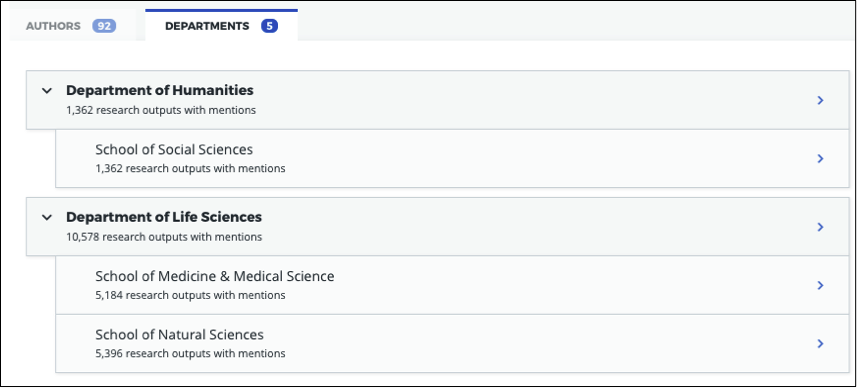
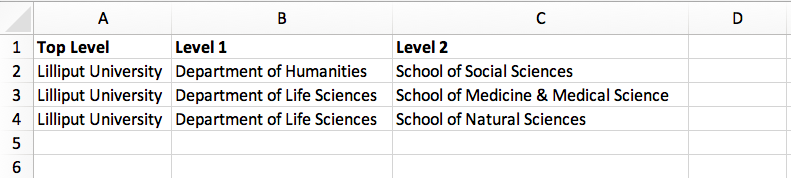
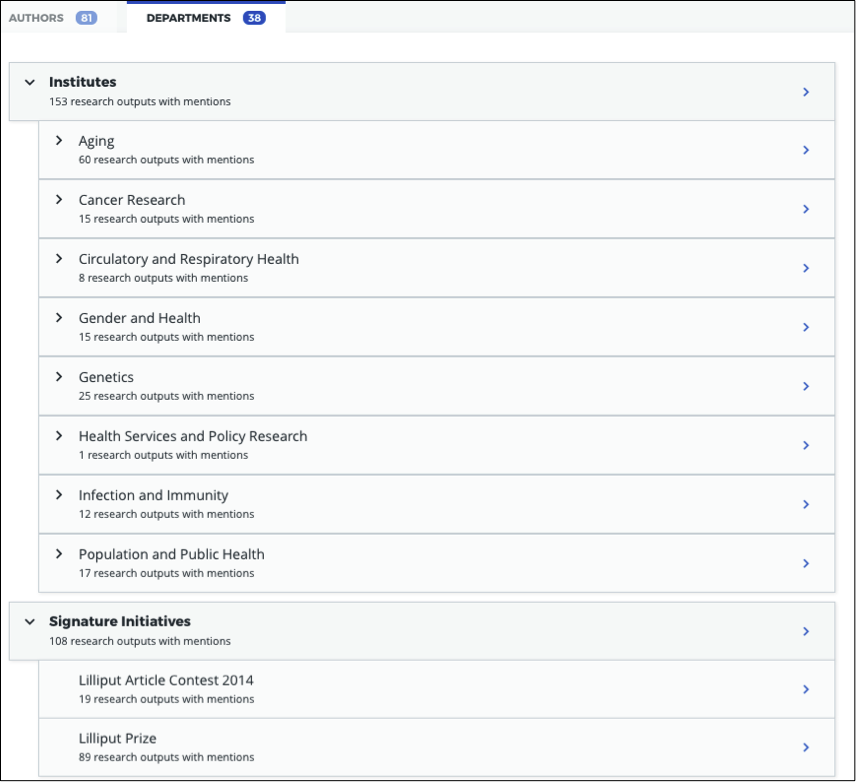
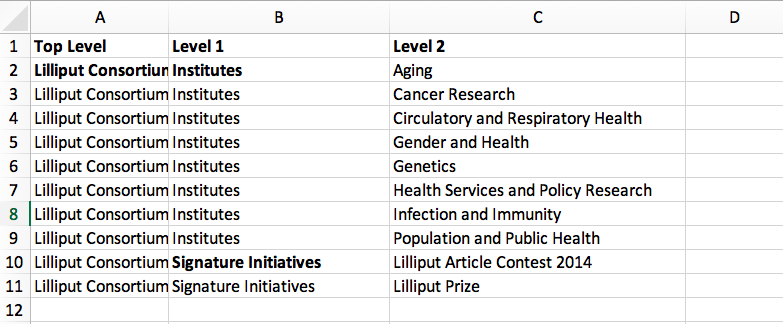
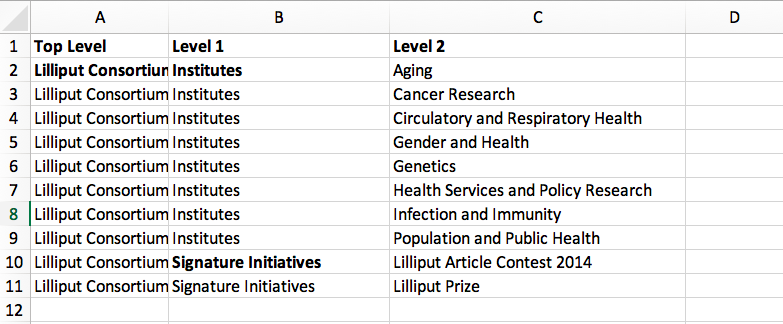
In order to browse your data by department or group, you will need to provide the structure of your departments/groups in a separate spreadsheet. Each level in the hierarchy should be listed in a separate column. This creates a section in the Explorer Departments view. A Level 1 group will be a new section, with its Level 2 groups associated as children. Column A should always contain the name of your organization, a Top Level department which won't appear in the Explorer. See below for examples in Explorer for Institutions and as CSV spreadsheets. Please note: the department names must match the group names in your publications spreadsheet and not include duplicates.
a) University/research institution hierarchy example
Here's an example of a university departmental hierarchy in Explorer for Institutions:
Here's how this hierarchy is structured in the CSV spreadsheet:
b) Funder hierarchy example
Here's an example of a funder departmental hierarchy in Explorer for Institutions:
Here's how this hierarchy is structured in the CSV spreadsheet (with parent departments bolded for emphasis):
c) Pharmaceutical hierarchy example
Here's an example of a pharmaceutical departmental hierarchy in Explorer for Institutions:
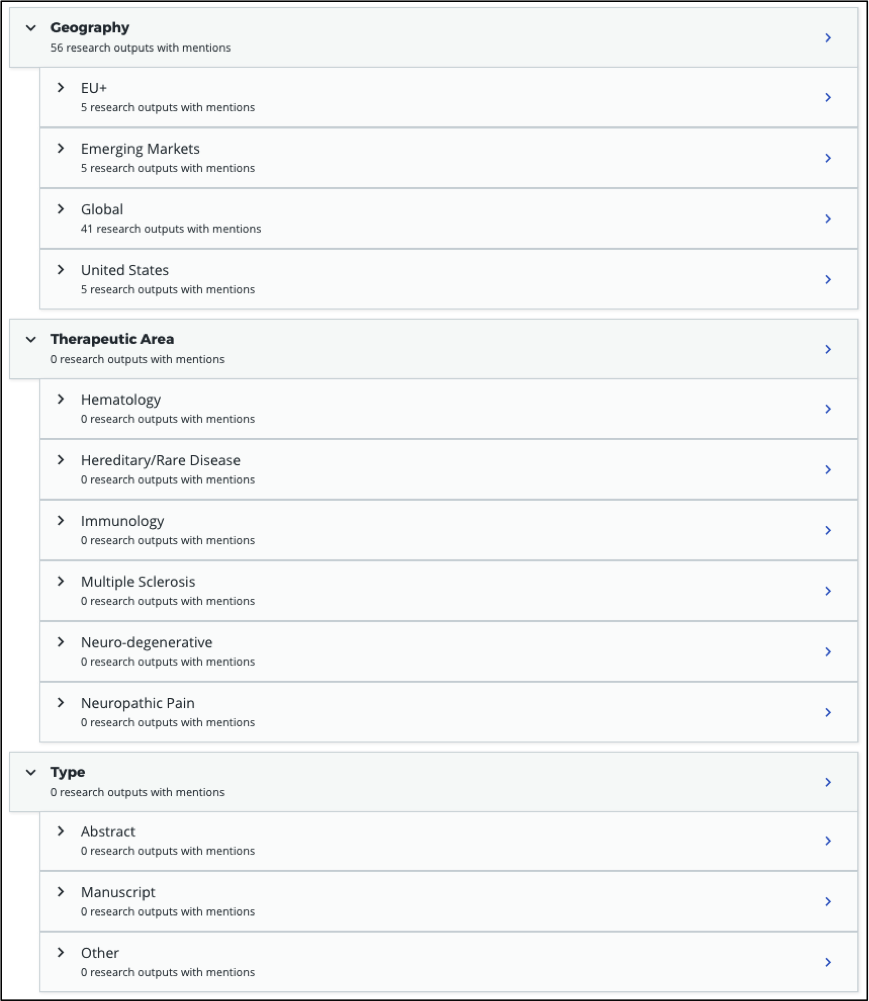
Here's how this hierarchy is structured in the CSV spreadsheet:
Supported identifiers
Explorer for Institutions supports the following unique identifiers via CSV import:
- DOI
- PubMed ID
- NCT ID
- RePeC ID
- arXiv ID
- ADS Bibcode
- Handle
- URN
- ISBN
- URI (custom service for supported domains only)
For each identifier type you want to use, please ensure that each of those types is listed in its own column.
Final steps
Once your data files are complete, navigate to the Admin Panel of your Altmetric Explorer account and click the "Upload Data" button to begin the upload process.
The data upload wizard will walk you through each step of the process which includes uploading your data, mapping it to identifiers in Altmetric, then validating the results before ultimately publishing the data to your instance of Explorer.
Please reach out to Altmetric Support if you have any issues with the upload process.
Keeping your data up-to-date via spreadsheet
Using the CSV uploader tool, one or more administrators at your organization can maintain the data integration by uploading new CSVs each time you wish to add, remove, or alter publications or departments. During the implementation process, we will establish who at your organization will be designated as an administrator; they will have access to the CSV tool and the administrator's panel. Training will be provided for any individuals who are designated administrators.
Documentation about the CSV tool can be found in the Support Portal here.
Harvesting from Your Repository OAI-PMH Feed
If your institution uses an institutional repository with an OAI-PMH feed, e.g. EPrints, DSpace or bepress, Altmetric can populate your instance of Explorer for Institutions using your repository data. This enables us to import your institutional authors, groups and organizational hierarchy from your institutional repository to Explorer for Institutions, and update your data automatically.
If you have a non-traditional structure to your institutional hierarchy please read this additional information.
Preparing your repository for an EFI integration
A number of metadata fields should be exposed via your OAI-PMH feed in order for Altmetric to collect all the relevant data from your repository and populate EFI. Instructions are detailed below.
Provide your OAI-PMH endpoint
Firstly, we need the base URL for your repository OAI-PMH endpoint, e.g.: http://eprints.lse.ac.uk/cgi/oai2. Altmetric will import your data via this endpoint.
Publications and identifiers
Next, Altmetric will import publications from your OAI-PMH feed, usually via a URL like this: http://eprints.lse.ac.uk/cgi/oai2?verb=ListRecords&metadataPrefix=oai_dc. Altmetric collects identifiers from the OAI record for each item. Only records that have a supported identifier will be imported so ensure that all of your records have unique persistent identifiers (e.g. DOI, Handle, ISBN), and those identifier fields are available via the OAI-PMH feed.
Warning
We're only able to import items with persistent identifiers.
Authors
Altmetric needs to know which authors are associated with your institution in order to populate the Authors tab in Explorer for Institutions. In order to set this up, you need to expose an institutional author ID via your OAI-PMH feed.
This could be a unique value for each institutional author, such as an ORCID iD, institutional identifier or email address. See the example below:
<record>
  <header>
    <identifier>oai:gala.gre.ac.uk:1</identifier>
    <datestamp>2016-10-14T08:58:54Z</datestamp>
  </header>
  <metadata>
    <oai_dc:dc xmlns:oai_dc="http://www.openarchives.org/OAI/2.0/oai_dc/" xmlns:dc="http://purl.org/dc/elements/1.1/" xsi:schemaLocation="http://www.openarchives.org/OAI/2.0/oai_dc/ http: www.openarchives.org OAI 2.0 oai_dc.xsd" xmlns:xsi="http://www.w3.org/2001/XMLSchema-instance">
    <dc:title>A natural extension of the conventional finite volume method into polygonal unstructured meshes for CFD application.</dc:title>
    <dc:creator id="[email protected]">Pericleous, Koulis A.<dc:creator>
    <dc:creator id="1234">Cross, Mark<dc:creator>
    <dc:subject>TA Engineering (General). Civil engineering (General)</dc:subject>
    <dc:description>A new general cell-centered solution procedure.</dc:description>
    <dc:publisher>Elsevier</dc:publisher>
    <dc:date>1996-02</dc:date>
    <dc:type>Article</dc:type>
    <dc:type>PeerReviewed</dc:type>
    <dc:identifier>http://hdl.handle.net/10568/54297</dc:identifier>
  </oai_dc:dc>
</metadata>
</record>
From the source code above, we collect the authors from the dc:creator tags:
<dc:creator id="[email protected]">Pericleous, Koulis A.</dc:creator>
<dc:creator id="1234">Cross, Mark</dc:creator>
The unique id for the first institutional author would be "[email protected]", and for the second author it would be "1234". This enables searching for these authors in the Explorer for Institutions view.
Important
Harvesting authors based on institutional affiliation is only available for certain OAI-PMH feeds / metadata prefixes. For further information please contact Support who will be happy to discuss this with you.
Hierarchy
Altmetric recreates your organizational hierarchy from your institutional repository in order to populate the Departments tab in Explorer for Institutions. Groups should be available in the OAI-PMH feed, as detailed in the ListSets example below: http://eprints.lse.ac.uk/cgi/oai2?verb=ListSets.
The sets created should replicate your browse by Division/Group/Faculty view in the front end of your repository.
Altmetric will recreate a Division/Group/Faculty hierarchy using the colon separated identifiers provided by the setSpec tag for each Set in the ListSets endpoint - as demonstrated at http://eprints.lse.ac.uk/cgi/oai2?verb=ListSets
Example
<ListSets>
  <set>
    <setName>Division/Faculty/Department = Lilliput University</setName>
    <setSpec>1</setSpec>
  </set>
  <set>
    <setName>Division/Faculty/Department = Lilliput University:Faculty of Computing</setName>
    <setSpec>1:2</setSpec>
  </set>
    <set>
      <setName>Division/Faculty/Department = Lilliput University:Faculty of Computing:Department of Web Technologies</setName>
      <setSpec>1:2:3</setSpec>
    </set>
</ListSets>
Creating the hierarchy
Using the identifiers in the setSpec to build the hierarchy, the example above would create a 3 tier hierarchy of Lilliput University, with the Faculty of Computing underneath it, with the Department of Web Technologies beneath that.
Extracting names
The department name is populated from the appropriate level as extracted from the setName - using the example above of Division/Faculty/Department = Lilliput University:Faculty of Computing:Department of Web Technologies, the name extracted for third level of the hierarchy would be Department of Web Technologies
The Division/Faculty/Department = prefix can be customised for your repository.
Your hierarchy can go beyond 3 levels, however these will not be shown in the Altmetric Explorer.
DiVA Portal
If you are a DiVA Portal customer and are using our OAI-PMH integration with the swepub_mods metadata prefix we're able to offer you a number of ways to customize how departments are displayed within your Explorer for Institutions.
- Translations/renaming: It might be that you want to translate your department names from Swedish to English or simplify certain department names so that they're more easily identifiable for users.
- Map papers to other departments: It might be that your repository hierarchy is out of date or your institution has gone through a number of changes over the years and departments have merged or you want to simplify reporting.
If either of these requirements are something that you're interested in you can read more about translating/renaming departments here and re-mapping papers here.
We are also able to filter out specific record types based on their setSpec, for example as part of the synchronization process we're able to exclude all records that have the name studentThesis.
Advanced Customisation
Our DiVA OAI-PMH integration is able to support a combination of paper re-mapping, with department translations/renaming and custom department hierarchy. In order to take advantage of this functionality, the following steps are required:
- Paper/department re-mappings must be provided/hosted in their original language (e.g. Swedish) and not translated to English, as a
remappings.csvfile. - Department translations/renaming, where required, must be provided/hosted in a
translations.csvorrenaming.csvfile. Departments that do not require a translation/rename will remain in their original language. If you need a mixture of translations and renaming, please provide a single file namedtranslations_and_renaming.csvcontaining both. - Follow the instructions here with the following additional important points:
- The department names must be the final translated/renamed/re-mapped names from the above steps.
- The department ids do not need to match the setSpecs in the OAI-PMH feed, however they must be unique, and most importantly, only contain alphanumeric characters
(a-z, A-Z, 0-9), with underscores allowed. - Provide/host the file as
departments.csvordepartments.json(CSV is preferred since the previous steps are CSV files).
Note: You can skip some of the steps mentioned above (for instance, if you only need to perform one or two of them), but it's crucial to maintain the sequence in which they are presented.
Haplo
If you use Haplo for your repository then our integration will be configured to use the oai_datacite metadata prefix. This will enable us to specifically import authors that are affiliated with your institution.
DSpace
If you use DSpace 6 for your repository then you will need to ensure that the api/hierarchy endpoint is enabled and is returning Communities and Collections as we build your hierarchical structure using this data and not from ListSets. If you use DSpace 7 you will need to ensure that the api/core/communities endpoint is enabled.
If you are unable to enable this endpoint we are able to offer a departmentless integration as an alternative.
Esploro
Esploro requires that a setSpec is always provided when harvesting records from your repository. This means that in order to sync over your research outputs and to replicate your departmental structure within your Explorer for Institutions you will need to create publishing profiles for each department. If you are unable to do this then we are able to offer a departmentless integration as an alternative.
Note
If you require a departmentless instance then, because of the selective harvesting requirement, a single publishing profile would still be required.
The Esploro repository also exposes a number of other profiles via ListSets, for example BrowZine and Unpaywall. To exclude these from appearing within your Explorer for Institutions you would be required to prefix the setName of all publishing profiles you do want to see with Department = as in the example below.
To have a department for the Faculty of Science for which there is a dependent department School of Biology, you will need a publishing profile for each which would result in the following ListSet records. Because of the filtering applied using Department = the BrowZine wouldn't be synced.
<ListSets>
  <set>
    <setSpec>Faculty of Science</setSpec>
    <setName>Department = Faculty of Science</setName>
  </set>
  <set>
    <setSpec>Faculty of Science:School of Biology</setSpec>
    <setName>Department = School of Biology</setName>
  </set>
  <set>
    <setSpec>BrowZine</setSpec>
    <setName>BrowZine</setName>
  </set>
</ListSets>
This would result in the following structure within the Explorer.

Next steps
Please ensure you have completed the steps above. When all changes are in place and the new fields are accessible via your institutional repository OAI-PMH feed, Altmetric are able to begin your Explorer for Institutions implementation. During the implementation, we'll initially run a full import of your repository data and set up weekly automatic updates to import new/modified items.
Frequently Asked Questions
Can we connect more than one data source at the same time?
No. Each Explorer for Institutions instance is connected to a single data source, and your publications and authors are imported from that one system. A combined setup, for example an API integration with Symplectic Elements alongside an OAI-PMH feed from your institutional repository, is not something we can support.
Where your publications live in more than one system, you have two options: choose the source with the fullest record, or export a combined set from both systems into a single CSV/Excel upload. See Choosing Your Data Source for the trade-offs, and for the one exception, which is that departmental structure can come from a supplementary file you host.
Can we change our data source after our instance is live?
Yes, although it is a switch and not a merge. Moving to a new source clears your instance and re-imports it in full, so please talk to your Engagement Manager or contact support@altmetric.com before you retire or reconfigure the system we currently sync with.
What happens after my data are imported into Explorer for Institutions?
After Altmetric connects with your system for the first time, an initial mass import of all your authors, publications, departments, etc. will be carried out. The authors, departments, and organizational hierarchy information will be used to populate the Authors and Departments tabs that can be found in My institution.
Using the publications data you have supplied, Altmetric will retrieve any attention data it has stored in association with these particular publications. Thus, attention data for all scholarly articles in your institution will be automatically supplied once the connection is made. There is no further work required from you once you have provided Altmetric with access.
Do lists of authors, publications, and groups Altmetric stay in sync?
Yes. All of the relevant data that Altmetric retrieves from your system are synced with Explorer for Institutions on a regular basis. Updates or deletions of authors, publications or groups, etc. in your system will subsequently be reflected in Explorer for Institutions after its latest sync.